



Last updated: Oct. 29, 2026
Before a new employee’s first day, have four things ready: their own Microsoft 365 account and license, a managed and encrypted computer, access limited to their role, and a plan to set up multifactor authentication (MFA) with them. Galaxy IT, a Utah-based managed IT and cybersecurity company, built this IT onboarding checklist to show each step and when to start.
The goal is a new hire doing real work before lunch, which happens only when setup is finished first.
What belongs on an IT onboarding checklist?
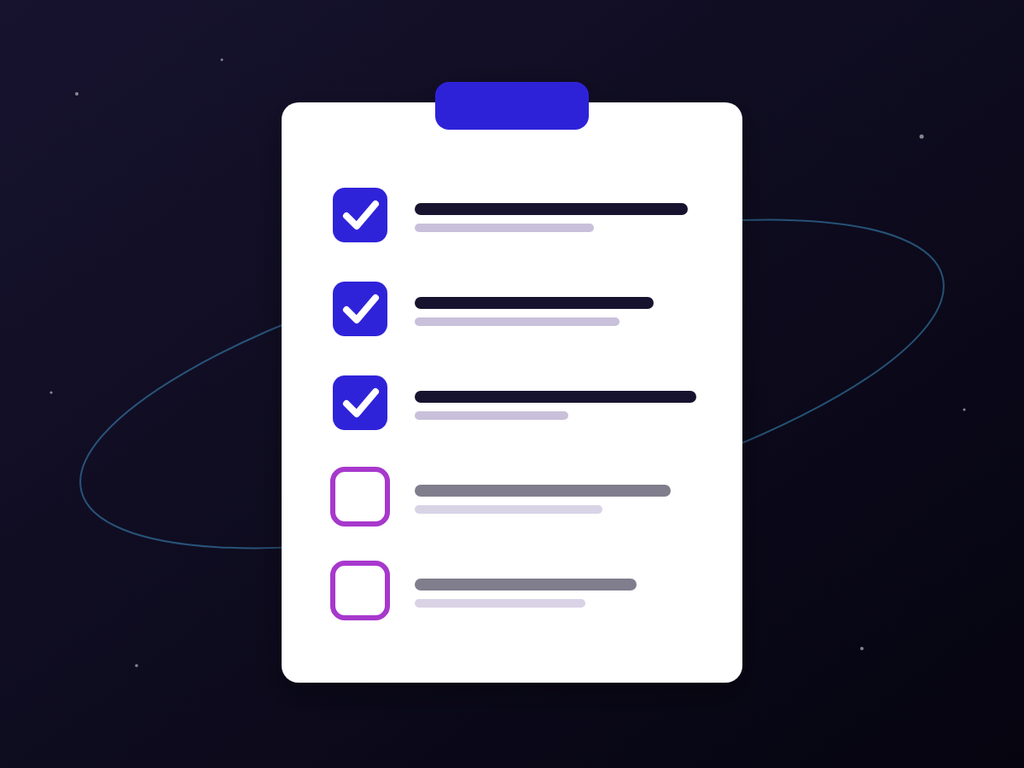
The Galaxy IT onboarding checklist for small businesses in Utah has eight items. Finish the first seven before the start date, and save the walkthrough for the first morning.
- The start date, role, manager and work location, in writing
- A new user account in the employee’s own name, never a former employee’s account
- The licenses the role needs, bought and assigned
- Email, shared mailboxes, Microsoft Teams channels and file access for the role, and nothing more
- A computer that is updated, encrypted, protected and enrolled in device management, with an asset record
- Role-specific software, such as practice management, accounting or CAD, installed and tested
- A plan to set up multifactor authentication with the employee at first sign-in
- A day-one walkthrough: how to get help, how to report a suspicious email and which policies to sign
A two-person office in Millcreek needs the same list as a 40-person firm in Lehi. The bigger firm just has more role templates to keep current.
When should each onboarding step happen?
| When | What gets done |
|---|---|
| As soon as you have the details | Send IT the name, start date, role, manager and work location. If a laptop has to be ordered, say so now. |
| 24 hours before the start date | Make sure Galaxy IT has the details. This is Galaxy IT’s minimum notice unless you keep a spare laptop ready for new hires. |
| Before the start date | Create the account in the employee’s own name, ideally a few days ahead. Assign the role’s licenses and access. Update, encrypt and protect the computer. Enroll it in device management and add it to the asset record. |
| Day one | Hand over the computer. Complete the first sign-in and MFA setup, including a backup method. Test email, Teams, shared files, printers and core apps. Collect the signed security agreement. |
| One week later | Remove anything granted “just for today.” |
One Utah deadline runs alongside the IT checklist. Utah employers must report every new or rehired employee to the Utah Department of Workforce Services within 20 days of the employee’s first day of work (Utah DWS). Add the state report to the same onboarding list so one start date drives both.
How much notice does IT need before a new hire starts?
Galaxy IT, a Utah-based managed IT and cybersecurity company, asks for at least 24 hours’ notice before a new hire starts. Give more whenever you can. The laptop sets most of the pace. A business that hires regularly and keeps a spare laptop ready for new hires can give Galaxy IT less than 24 hours’ notice. Line-of-business software can add time when only the vendor can create users.
| Situation | Notice Galaxy IT needs |
|---|---|
| A spare laptop is ready for new hires | Less than 24 hours’ notice is enough. |
| No spare laptop, so one has to be ordered | It depends on the make, model and availability. Tell us as soon as the offer is accepted. |
What should the owner or office manager send IT?
Send one message with everything IT needs:
- Full name, spelled exactly as it should appear
- Start date and a mobile number for sign-in verification
- Job title and manager
- Where they will work, with a shipping address for remote hires
- Who they are replacing, if anyone
- Any software, shared mailbox, network drive or printer the role needs
Which accounts and licenses should be set up in advance?
Create the account as soon as you have the details, ideally a few days before the start date, in the employee’s own name. In Microsoft 365, a new user gets an automatically created password and must change it at first sign-in. Both settings are on by default (Microsoft Learn). You can add a user before buying a license, but they can’t use email or the apps until one is assigned.
Then add the role’s shared mailboxes, Teams channels and SharePoint folders. On Microsoft 365 Business Premium, group-based licensing means adding the employee to their role’s group handles the license too.
Never hand a new hire a departed employee’s account, even for the same job.
Why shouldn’t you copy a coworker’s permissions?
A coworker of six years has collected access along the way, such as the payroll folder from covering a vacation. Copy their permissions and the new hire inherits all of it. NIST defines least privilege as access limited “to the minimum necessary to accomplish assigned tasks.” Use a short role template instead, and require the owner’s written approval for anything extra.
How do Microsoft Intune and Microsoft Entra ID speed up onboarding?
Microsoft Entra ID and Microsoft Intune speed up onboarding because you build the setup once in the cloud, and every new laptop pulls it down at first sign-in instead of being configured by hand. Entra ID holds the employee’s identity, groups and sign-in rules. Intune enrolls, configures, secures and updates the device and deploys its apps (Microsoft Learn).
Windows Autopilot can take a new laptop from the box to a configured, managed state when the employee signs in, without reimaging. It needs Windows 11 (Pro, Enterprise or Education), a registered device and licensing such as Microsoft 365 Business Premium, which includes Microsoft Entra ID P1 and Microsoft Intune Plan 1 (Microsoft Learn). Business Basic and Business Standard include only a limited subset of Intune.
When a managed client is set up correctly, a new hire can be ready to work on day one without needing to contact us. The setup itself now takes minutes, not days. The 24-hour notice is there so we can order hardware and assign licenses before the start date.
How should a new employee’s computer be prepared?
Finish, test and record the computer before the employee touches it:
- All Windows or macOS updates installed
- Full-disk encryption on (BitLocker on Windows, FileVault on a Mac)
- Endpoint protection installed and reporting to its console
- Enrolled in device management, so it can be updated, locked or wiped remotely
- A standard user account, without local admin rights
- An asset record with the model, serial number, user and date
The FTC recommends encrypting laptops that hold sensitive information. Our guide to secure remote device management covers the day-to-day side.
Buy new hires’ laptops through your IT provider rather than on your own. Galaxy IT sells laptops to its clients. We recommend buying through us because a laptop bought on your own can arrive with the wrong specs or the wrong operating system version. A Windows edition that can’t join the company setup is one of the first-day gaps we see most often.
Can a new hire use a former employee’s laptop or account?
A new hire can use a former employee’s laptop if it’s still supported, but never their account. Galaxy IT recommends this order:
- Lock the former employee out of Microsoft 365. Reset their password, sign them out of all sessions and block their sign-in.
- Keep their email and files before anything is removed. Convert their mailbox to a shared mailbox (no license needed under 50 GB) or forward their email (don’t delete their account if you do this), and give their manager access to their OneDrive files. Microsoft’s guide to removing a former employee covers steps 1 to 3 in detail.
- Remove their Microsoft 365 license, then give it to the new hire or lower your license count. An unlicensed OneDrive turns read-only after 60 days and is archived after 93.
- Reset the laptop. On a laptop joined to Microsoft Entra ID and managed with Intune, Autopilot Reset removes the old user’s files, apps and settings while keeping it enrolled.
- Update the asset record with the new user and the date.
- Create a new account in the new hire’s own name.
A laptop you’re retiring gets a full Intune wipe instead. Reuse the laptop. Never reuse the account.
How should first sign-in and MFA be handled?
Set up MFA during the new employee’s first sign-in, with a manager or IT available in person or on a video call. Galaxy IT does this with each new hire. MFA adds a second check beyond the password. The Cybersecurity and Infrastructure Security Agency (CISA) ranks a physical security key as the strongest option, followed by an authenticator app with number matching, and calls text or email codes the weakest.
CISA asks businesses to require MFA for email, file storage and remote access. Microsoft’s security defaults page says MFA can block “over 99.2% of identity-based attacks.” A 2023 Microsoft Research study of Microsoft Entra ID accounts found MFA reduced the risk of account compromise by 99.22%.
Three habits keep first sign-in safe:
- Never send a password by email or text, a point the FTC makes too.
- On Microsoft 365 Business Premium, use a Temporary Access Pass, a time-limited code the employee uses to register MFA. Set it for one-time use with a short lifetime.
- Register a backup MFA method on day one, so a lost phone doesn’t lock them out in week three.
What password rules should a new employee follow?
Skip the 90-day password change. Microsoft 365 passwords never expire by default, and NIST SP 800-63B-4 says organizations “SHALL NOT require subscribers to change passwords periodically.” NIST puts the weight on length instead: at least 15 characters for a password used on its own.
What should happen on the new employee’s first day?
The first day is for handover and testing, not setup. On the first morning:
- Hand over the computer and match the serial number to the asset record.
- Complete the first sign-in and MFA setup.
- Open email, Teams, shared files, printers and each core application.
- Show them how to get help and report a suspicious email.
- Collect a signed confidentiality and security agreement, which the FTC recommends for every new employee, along with your acceptable use policy.
Galaxy IT also recommends two things for every new hire: a password manager for work passwords and cybersecurity awareness training. The training helps new hires spot a phishing email before they click it.
A week later, remove anything granted “just for today.” Everything you record during onboarding is what you’ll remove when the employee leaves.
How do remote and hybrid hires change the checklist?
Remote and hybrid hires need the same checklist with more lead time. Configure, encrypt and enroll the laptop before it ships, and do the MFA setup on a video call. A remote hire in Herriman or Ogden should open the box, sign in and land on the same desktop as someone sitting in your Salt Lake City office. Our post on IT support for remote employees covers what comes next.
What usually holds up a new hire’s first day?
Most first-day delays start with a missing detail, not a broken laptop. These are the gaps we see most often:
- Vague access requests. “Same access as Sam” isn’t a list. Name the mailboxes, folders and groups.
- No license ready. Setup stalls until one is bought or freed up.
- Last-minute notice. Send at least 24 hours’ notice, and more when a laptop has to be ordered.
- A predecessor who was never offboarded. Close out their account, license and files; don’t pass the account on.
- A laptop that isn’t ready. It was reused without a wipe or never ordered, or it runs a Windows edition that can’t join the company setup. Wipe any reused laptop first.
- MFA trouble at first sign-in. It’s usually a wrong phone number or a sign-in code that was never issued.
- Wrong basics and late extras. A name is misspelled, or apps and printers come up on the first morning.
How easy is it to add new users and computers with a managed IT provider?
With a managed IT provider, adding a new hire should take one message from you. Send the name, start date, role, manager and work location, and the provider sets up the account, licenses, access and computer. Galaxy IT can supply the laptop too, and we set up MFA with the new hire at their first sign-in.
When a managed client is set up correctly, the setup itself takes minutes, not days, because company laptops registered with Windows Autopilot pick up the same settings and apps from Microsoft Intune at the new hire’s first sign-in. Galaxy IT asks for at least 24 hours’ notice, or less when a spare laptop is ready.
Of the Microsoft 365 plans for small businesses, only Microsoft 365 Business Premium includes Microsoft Intune Plan 1 and Microsoft Entra ID P1. Business Basic and Business Standard include only Microsoft Entra ID Free and a limited subset of Intune called Basic Mobility and Security.
What makes it easy is the work done before anyone is hired: a role template for each job, group-based licensing where the plan supports it, and devices enrolled in device management. Without those, each new hire’s setup is done by hand, and that’s when first days slip.
Who handles new employee IT setup in Salt Lake City and across Utah?
Galaxy IT handles employee onboarding and offboarding for small businesses in Salt Lake City and statewide as part of its managed IT plans, including MFA setup with each new hire at their first sign-in. Galaxy IT is a Utah-based managed IT and cybersecurity company with offices in Murray, Utah, serving businesses across Utah, including the Wasatch Front. For clients on our managed IT services, we handle all of it: the account, the computer, the access and the cleanup when someone leaves. Businesses without a managed plan can still get help with new hires; that work is billed separately. See managed IT support in Salt Lake City for local help.
If new hires keep starting without the access they need, or former employees keep theirs too long, request a free IT assessment.
Frequently asked questions
Should a new employee get admin rights on their computer?
No. A new employee should work from a standard user account, because admin rights let malware and mistakes change the whole computer. If a role truly needs admin access, give that person a separate admin account for admin tasks only, approved by the owner.
Can a new hire use the previous employee’s account?
No. Never reuse a departed employee’s account. An inherited account makes it impossible to tell who did what, and it carries over the old employee’s access. Give the new hire their own account and move over only the files and mailbox access they need.
How much notice should we give IT for a new hire?
Give IT at least 24 hours’ notice, and more whenever you can. The sooner IT has the name, start date, role and access list, the sooner a laptop can be ordered and the account set up. If a laptop has to be ordered or shipped, plan on more lead time.
Does every new employee need multifactor authentication?
Yes. The FTC calls for MFA for all employees and contractors who access your network, and CISA recommends it on email, file storage and remote access. Set it up at the new hire’s first sign-in, with a backup method registered the same day.
