





Last updated: Nov. 17, 2026
Switching IT providers without downtime comes down to order: confirm you own your accounts, sign with the new provider, then give notice and run both side by side until the handover is tested. Galaxy IT, a Utah-based managed IT services company, recommends this ownership-first order to businesses across Utah.
If you’ve put off a switch because you picture a lost week of email and a locked-out front desk, the right order makes that outcome far less likely. Trouble during a switch often traces back to one gap. The old provider holds a password, a domain or a firewall login that nobody else has.
This guide walks through the order that avoids that gap. If you’re still deciding whether to leave, start with our post on how to spot an underperforming IT provider.
Is switching IT providers hard, and will we have downtime?
Switching IT providers is mostly paperwork and planning, not technical heavy lifting. Your computers, email and files usually stay where they are. What changes is who watches them, who answers the phone and who holds the keys. With planning, downtime risk comes down to a few moments you can schedule:
- Moving the domain or changing DNS records, which can interrupt email and your website if done carelessly
- Replacing the old provider’s monitoring and security tools before the new ones are running
- Changing firewall or Wi-Fi settings
- Moving backups to a new system before the first new backup is tested
A good handover plans each of those moments on purpose, during a quiet window, with a way to undo it. Everything else can run in the background while your team works.
What should you check before you tell your current provider?
Before anyone gives notice, quietly confirm that your business, not the provider, owns the accounts that run the company. If the old provider holds the only login to your domain, email admin or firewall, close that gap first.
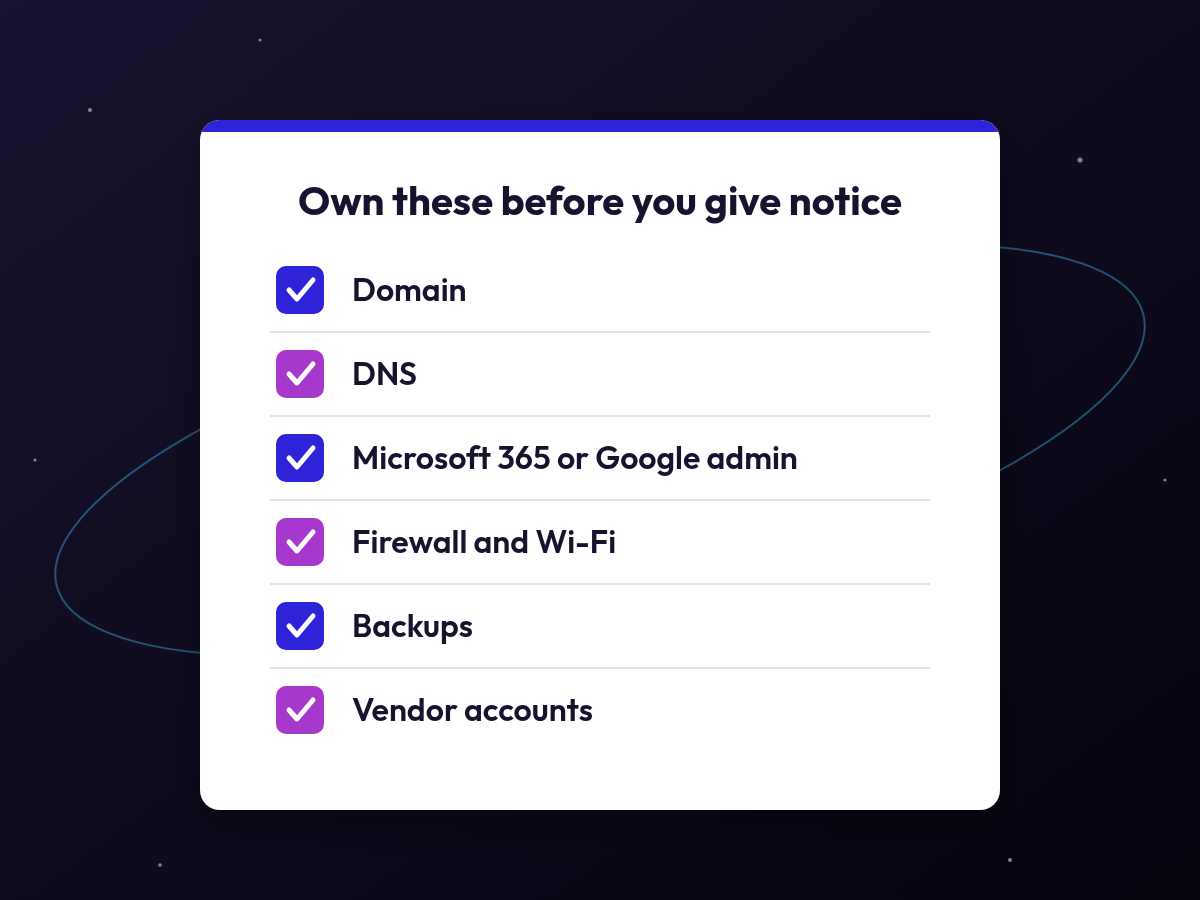
Accounts that should be in your company’s name:
- Domain registration. Look up your domain at ICANN’s lookup tool and log in to the registrar. The registrant should be your business. If the domain has to move into your company’s name first, ask the registrar about its 60-day transfer lock after a change of registrant.
- DNS hosting. Know where your DNS lives and who can log in. Your email and website depend on it.
- Microsoft 365 or Google Workspace. Your business should hold at least one top-level admin account (Global Administrator in Microsoft 365, super admin in Google Workspace), so the provider isn’t the only one with full access.
- Firewall, switches and Wi-Fi. Ask for the admin login and a saved copy of the configuration.
- Backups. Know where backup copies live and whose account they sit in.
- Business software and vendors. Know who holds the accounts for line-of-business apps, phone systems, internet circuits, software licenses and hardware warranties.
Read your contract for:
- The notice period and how notice must be given, such as in writing to a named contact
- Early termination fees or auto-renewal dates
- What the provider must hand over when the agreement ends, such as documentation, passwords and data
- Who owns any equipment the provider supplied
If the contract language is unclear, have your attorney review it before you send anything.
The Cybersecurity and Infrastructure Security Agency (CISA) says in its 2021 guidance for managed service provider customers that outsourcing IT management “does not absolve an organization from risk management responsibilities.” In practice, the owner is the one who has to know where the keys are.
How do you get firewall and admin passwords handed over?
Ask for them in writing, as a checklist, with a date. Keep the request specific:
- Admin usernames and passwords for the firewall, switches, Wi-Fi and servers
- A saved configuration file from the firewall
- Global Administrator (Microsoft 365) or super admin (Google Workspace) access
- Registrar and DNS logins, or confirmation that the domain and DNS are in your company’s name
- Backup console access and where copies are stored
- Network diagrams, asset lists and vendor contacts
Should your IT company give you all of this even when you’re not leaving? Yes. A business should always be able to reach its own admin accounts. Store those logins securely and limit them to the people who need them. If a provider won’t share documentation while you’re a happy client, that’s a warning sign.
What does a safe handover look like, step by step?
This sequence keeps people working while access changes hands:
- Sign with the new provider first. Give notice only after the new team has a plan and a start date.
- Give notice in writing. Follow the contract’s notice terms and include the handover checklist.
- Run both providers side by side. The new provider installs its tools and documents everything while the old provider still answers tickets. Agree on how long the overlap lasts before it starts.
- Test a restore. Before the old backups are retired, restore a real file or system from the new backup to prove it works. Our data backup and disaster recovery page explains how we monitor backups and regularly test recovery.
- Switch the help desk. Pick a date and tell staff how to reach the new help desk starting that day.
- Change every password the old provider knew. CISA’s joint advisory on managed service providers recommends against shared accounts and says that, where they’re used, their passwords “should be reset when personnel transition.” Treat the old provider’s exit as that kind of transition.
- Remove the old provider’s access. Disable its accounts, remove its remote-access and monitoring tools, and confirm the firewall no longer allows its connections.
That last step is easy to miss. The same advisory warns that disabling provider accounts “can be overlooked when a contract terminates.”
In Microsoft 365, you can see which partners hold admin roles in your account under Settings > Partner relationships in the admin center and remove those roles yourself, according to Microsoft’s guidance. Removing roles doesn’t end the partner relationship, and the partner can still buy licenses for you. If you bought Microsoft 365 licenses through the old provider, they don’t move on their own. If your new provider also sells Microsoft 365, you first accept its partner invitation. It then sends a transfer request, and the old provider has to approve it. Ask for that approval in your notice. Once the licenses have moved, ask the old provider to end its partner relationship with your account.
What if your current IT provider won’t cooperate?
Many handovers go smoothly, but plan for one that doesn’t:
- Domain: If you’re the registrant of a .com, .net or other generic domain, your registrar must give you the transfer code. ICANN says registrars provide it through a control panel or within five calendar days of a request.
- Microsoft 365: If you have your own Global Administrator account, you can remove partner roles yourself.
- Firewall or Wi-Fi: If the old provider won’t share logins, the new provider can reset and rebuild the configuration or replace the device during a planned window.
- Contract disputes: Keep requests in writing and bring in your attorney for anything about fees or data return.
This is why the ownership check comes first. Every account you already control is one less thing the old provider can hold up.
What should happen in the first 30 days with a new provider?
The first month is about learning your environment and closing gaps. A clear onboarding plan usually covers:
- A full inventory of users, devices, software and accounts
- Monitoring and security tools installed on every device
- A backup check, including a test restore
- Documentation you can access, covering passwords, network layout and vendors
- A list of security gaps, ranked by risk, with a plan to fix them
- An introduction for staff on how to get help
Ask any new provider to show you its onboarding plan before you sign.
How do you tell your current IT company you’re leaving?
Keep the notice short, professional and in writing. Thank them, state the end date based on your contract’s notice terms, attach the handover checklist and name one contact on each side. You don’t need to argue the reasons. A calm notice makes cooperation more likely.
What does Galaxy IT offer Utah businesses that are switching providers?
Galaxy IT is a Utah-based managed IT and cybersecurity company with offices in Murray, Utah, serving businesses across Utah, including the Wasatch Front. Every managed IT plan includes layered cybersecurity, 24/7 monitoring and immutable backups that ransomware can’t delete, with flat monthly pricing. Our team provides remote and on-site IT support across Utah. If you’re weighing a switch, our free IT assessment is an engineer-led look at your IT and security posture, and it’s yours to keep whether or not we end up working together.
Frequently asked questions
Can we cancel a managed IT contract without a penalty if the provider is slow?
It depends on your contract. Look for service-level terms, a termination-for-cause clause and the notice period. If the provider has missed promises it put in writing, document the examples and ask your attorney whether they give you a way out.
Should we keep both IT providers for a while?
Yes, for a short overlap that both providers agree to in writing. While both teams are working, the new provider can install its tools, document your systems and test a restore before the old provider steps away. Agree on when the overlap ends before it starts.
Who should own our admin passwords?
Your business. Your provider needs admin access to do its job, but at least one owner or manager should be able to reach every critical account, including the domain registrar, Microsoft 365 or Google Workspace, the firewall and the backup console. Store those logins securely and limit them to the people who need them.
How long does switching IT providers take?
It depends on the number of users, locations and systems and on how cooperative the old provider is. Your contract’s notice period and the length of the overlap you agree on also set the pace. Ask the new provider for a written plan with dates before you give notice.
Ready to plan your switch?
Start with a free IT assessment. It starts with a direct call with our founder, so bring this checklist and your questions about the switch.
